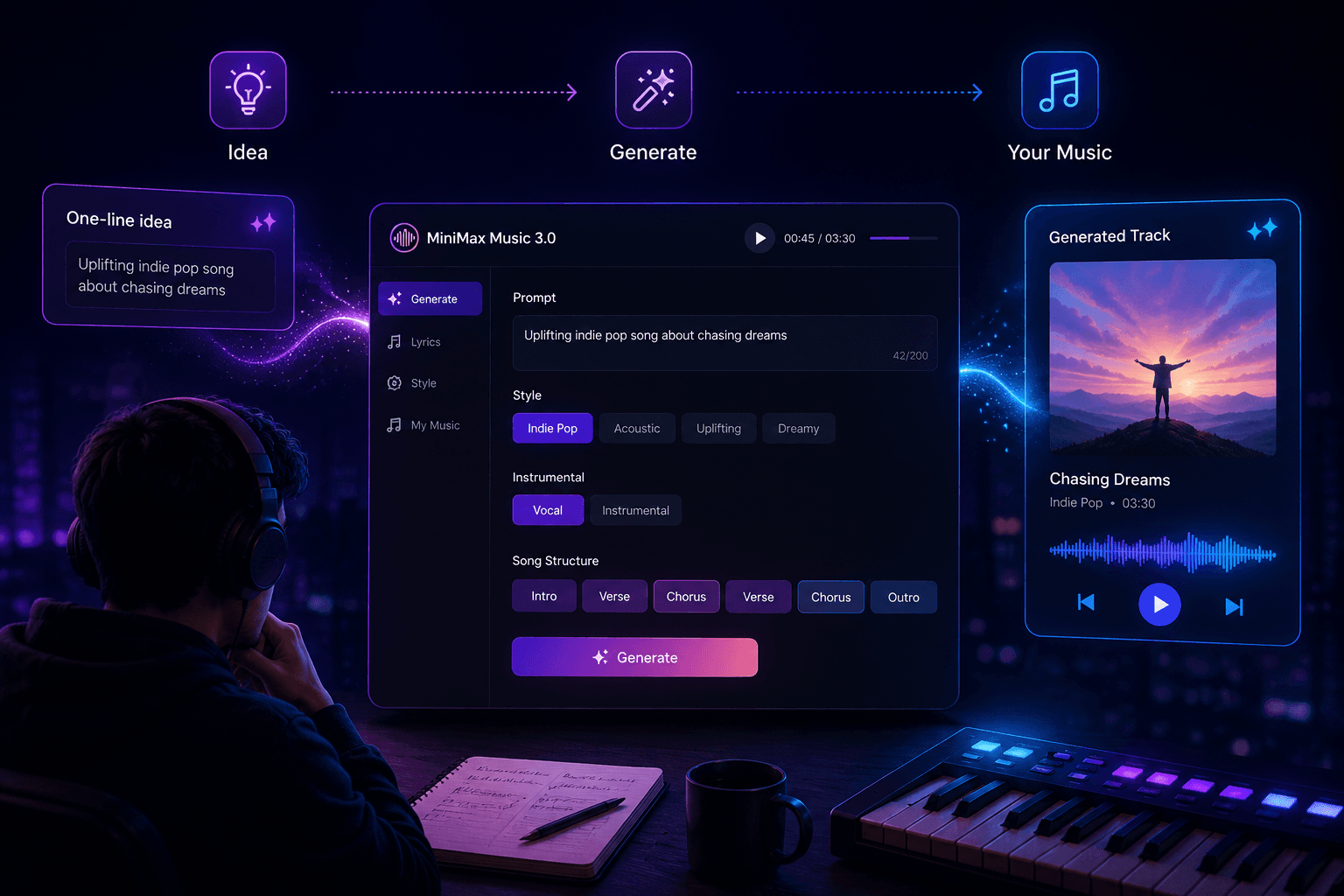
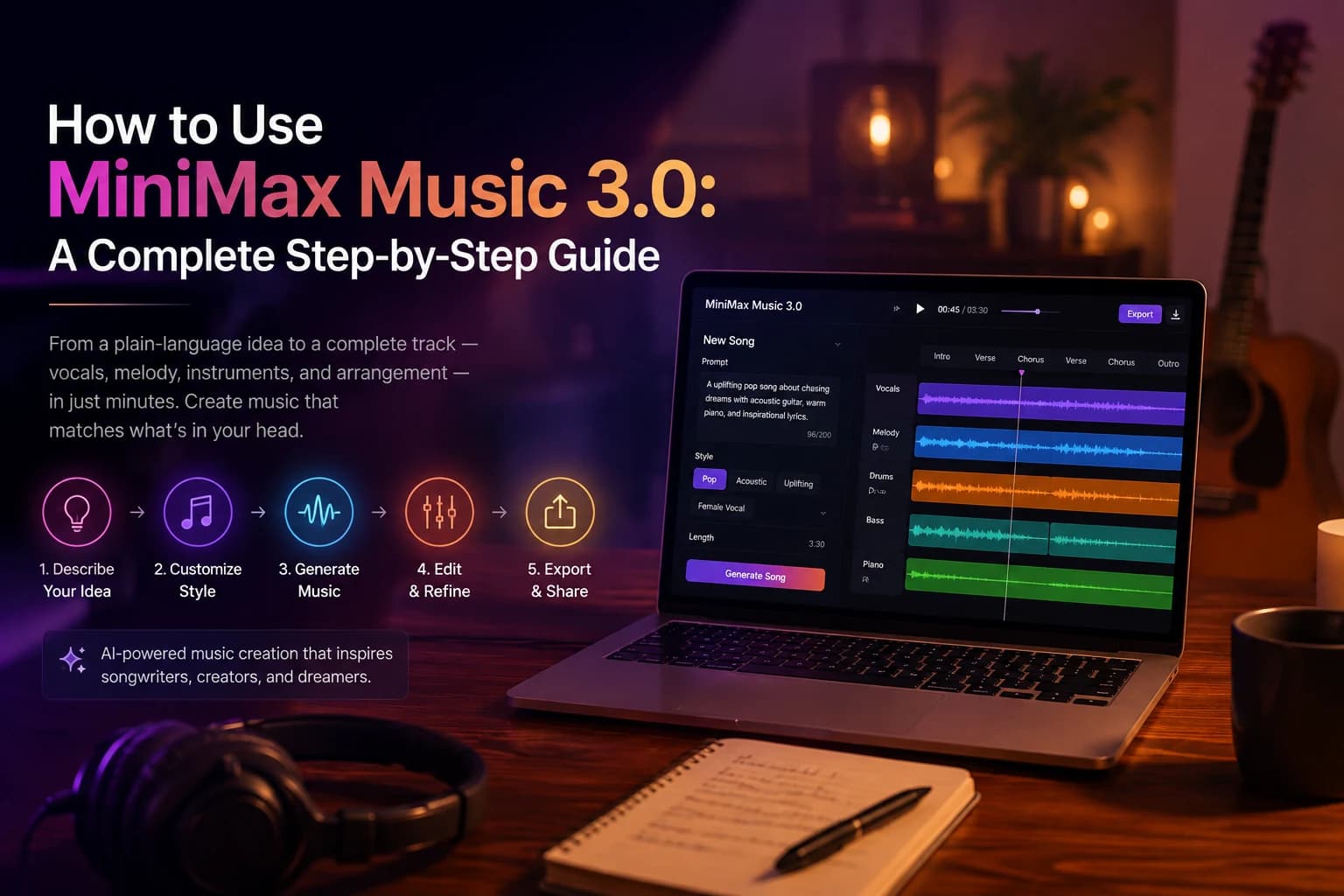
Making a finished song used to mean instruments, studio time, and years of practice. With MiniMax Music 3.0, you can go from a plain-language idea to a complete track — vocals, melody, instruments, and arrangement — in minutes, directly in your browser. Whether you’re a songwriter, content creator, or someone who has never written a note, this guide walks through the full process.
What Is MiniMax Music 3.0?
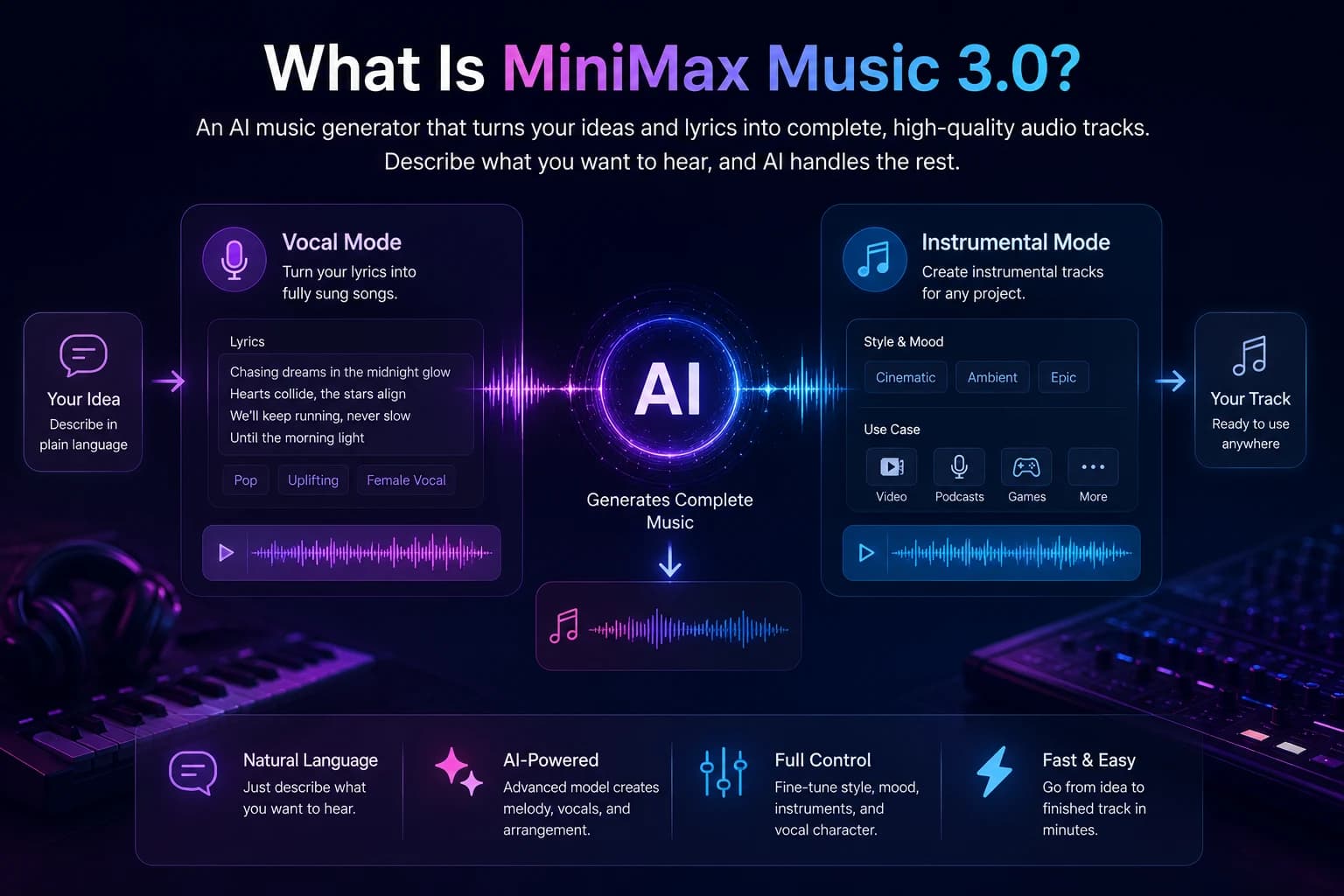
MiniMax Music 3.0 is an AI music generator that turns natural-language descriptions — and, optionally, your own lyrics — into complete audio tracks. Describe genre, mood, instruments, vocal style, and how the song should build.
Vocal mode turns lyrics into a fully sung song. Instrumental mode skips vocals for video, podcasts, games, or supporting soundtracks. Natural language makes both approachable for beginners while retaining creative control.
Before You Start: Decide What You’re Making
The biggest factor in a good result isn’t a hidden setting — it’s clarity. Do you need vocals or an instrumental? What role does the track need to play? A songwriting demo has different requirements from a 30-second YouTube intro. Naming the purpose gives the prompt direction. The prompt guide can help turn that purpose into useful musical language.
How to Use MiniMax Music 3.0: Step-by-Step
Before submitting a generation, review the pricing options to understand the credits available for your workflow.
Step 01
Open the Generator
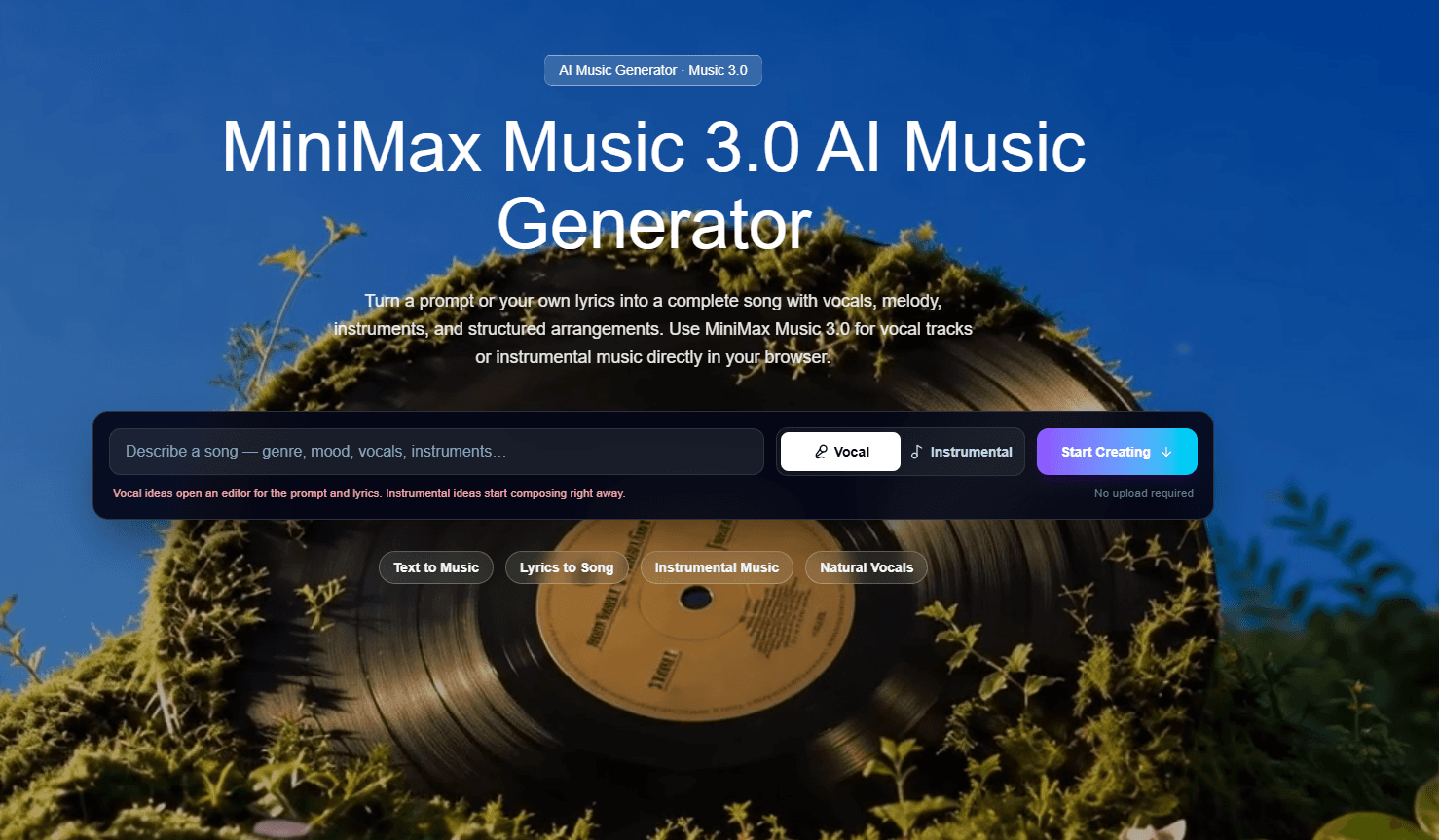
Head to the MiniMax Music 3.0 homepage and scroll to the generator panel, or click the music-creation button in the navigation bar. You’ll see a Music Prompt field, a Lyrics field, an Instrumental Only toggle, and a Generate button. Everything runs in the browser — there’s nothing to install and no account required just to explore the interface. Review the pricing options before generating to understand the credits available.
Step 02
Choose Vocal or Instrumental
Pick your mode first, since it determines which fields you need. Selecting a vocal idea opens the full prompt-and-lyrics editor; choosing instrumental lets you skip straight to describing the sound, since there’s no lyric content involved.

Step 03
Write a Detailed Music Prompt
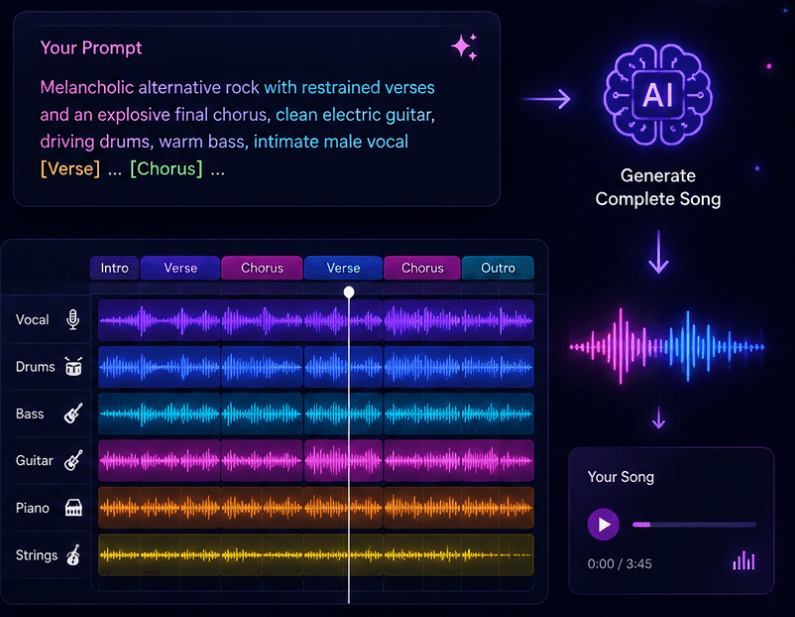
This field does the most work. A strong prompt reads less like a search query and more like a short creative brief. Use: Style + Emotion + Tempo + Instruments + Vocal Character + Structure + Production.
Prompt comparison Weak prompt “pop song” Strong prompt “Uplifting synth-pop at 110 BPM, bright analog synths, driving bass, cheerful female vocals, and a big anthemic chorus.” 
Step 04
Add Lyrics (Vocal Songs Only)
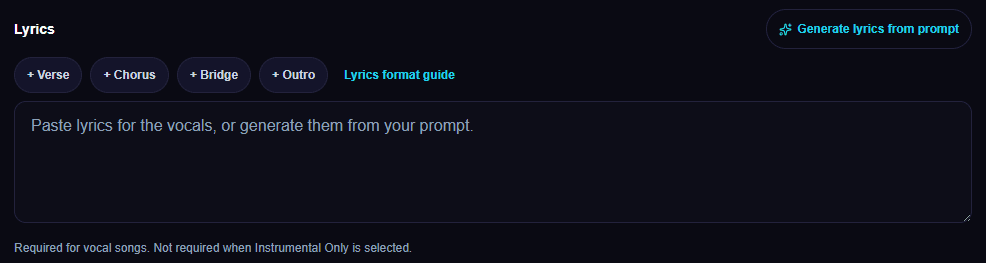
Paste your lyrics into the Lyrics field, or use Generate lyrics from prompt. Use [Intro], [Verse], [Pre-Chorus], [Chorus], [Bridge], [Hook], and [Outro]. Keep words to be sung in Lyrics and musical direction in the prompt.
Step 05
Enable Instrumental Only
If your project doesn’t call for a singer, turn on Instrumental Only. Lyrics are ignored and the model focuses on instrumentation, rhythm, dynamics, and mood — useful for video backgrounds, podcast intros, or game music.

Step 06
Generate, Listen, and Refine
Hit Generate and keep the tab open while the full song composes. Listen to the whole track. If it’s close, change only one or two elements — tempo, a key instrument, vocal energy, or chorus size — then generate again.

For more control over verses and choruses, follow the lyrics formatting guide.
How to Write Better MiniMax Music 3.0 Prompts
A few habits consistently produce stronger results:
Describe emotion, not just genre
“Rock” spans acoustic ballads and stadium anthems. “Melancholic alternative rock with restrained verses and an explosive final chorus” removes ambiguity.
Name the instruments that matter
If piano, distorted bass, saxophone, or strings are central to the sound, say so directly.
Describe the vocal character
Intimate, breathy, powerful, warm, raspy, or harmonized descriptors shape the performance.
Use song sections
Labels like [Verse] and [Chorus] tell the model where to build tension and release it.
Change one variable at a time
Adjust tempo, lead instrument, or vocal delivery separately so you know what changed the result.
Common Mistakes to Avoid
Most disappointing generations trace back to repeatable habits:
One-word prompts
“Sad song” or “beat” gives the model almost nothing to work with. Combine style, mood, tempo, and instrumentation.
Vague praise
“Good music” doesn’t describe sound. Name specific instruments, feelings, and pacing.
Rewriting everything
Changing every part of a close prompt makes it impossible to tell what improved or broke.
Ignoring production feel
Polished radio, lo-fi warmth, cinematic reverb, and raw live energy produce different mixes.
What You Can Create with MiniMax Music 3.0
The same workflow adapts to a wide range of projects.
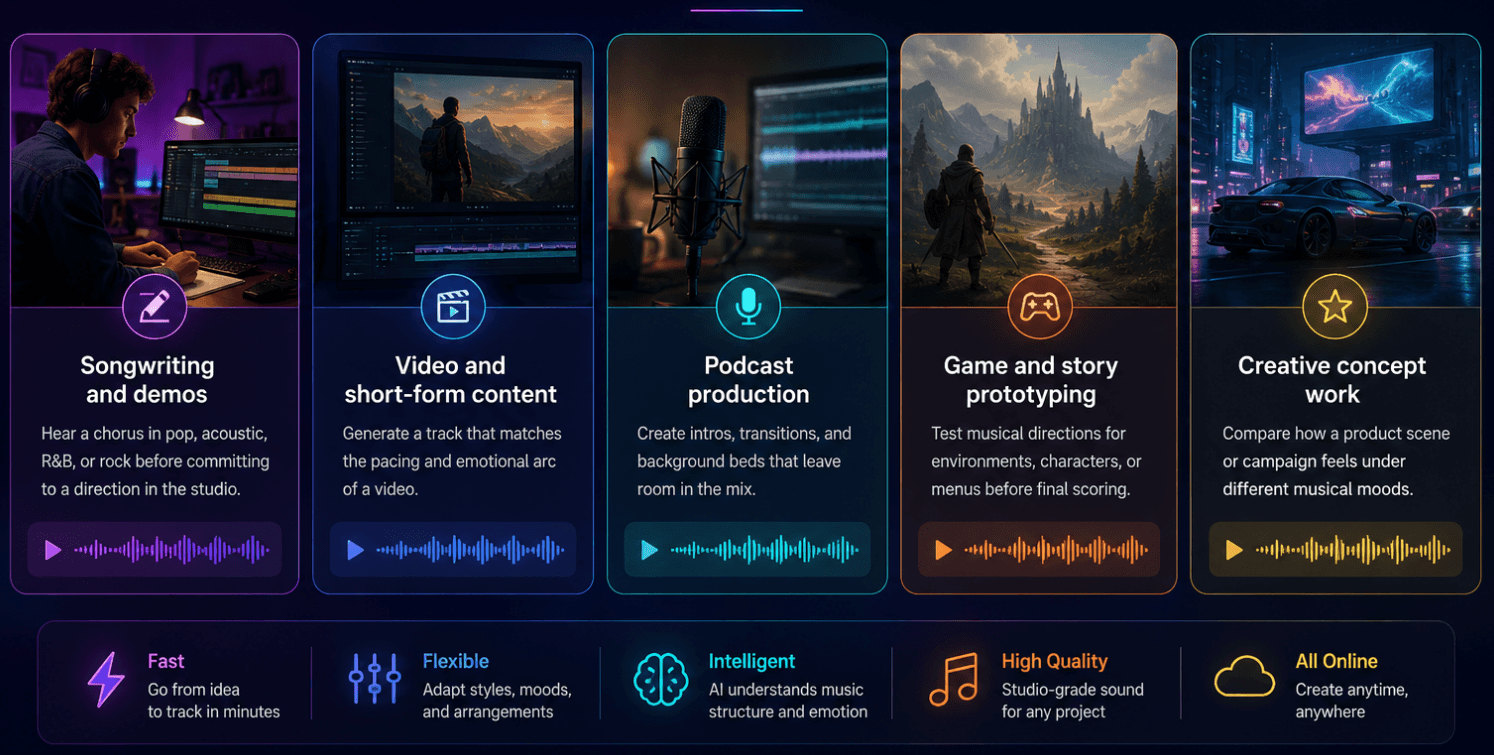
Songwriting and demos
Hear a chorus as pop, acoustic folk, R&B, or rock before committing in the studio.
Video and short-form content
Match a track to the pacing and emotional arc of a video.
Podcast production
Create intros, transitions, and beds that leave room for dialogue.
Game and story prototyping
Test directions for environments, characters, or menus.
Creative concept work
Compare electronic, acoustic, and cinematic moods for a scene or campaign.
Frequently Asked Questions
Do I need any music experience?
No. Plain-language prompts such as “calm piano instrumental” are enough to begin.
Can MiniMax Music 3.0 write lyrics?
Yes. Use Generate lyrics from prompt, then review and edit the result.
How long does generation take?
Typically a few minutes depending on complexity and current demand. Keep the page open.
What’s the difference between vocal and instrumental?
Vocal mode produces sung lyrics and a full performance. Instrumental mode creates music with no vocals.
Can I use generated tracks commercially?
Review the Terms of Service and local laws before commercial use. Describe original musical qualities rather than imitating a specific artist.
Start Creating
The fastest way to understand MiniMax Music 3.0 is to try it. Start with a one-line idea, listen, and refine. Strong results often come after two or three small adjustments.